

|
|
|
| |
|
|
||||
 |
| |
| FIB > Computing laboratory > Services > E-mail > Access from outside the FIB |
Català | Castellano | |
|
|
|
|
|
Access from outside the FIBLast modified: 14-06-2002
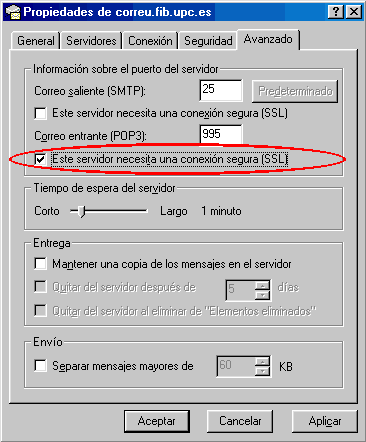
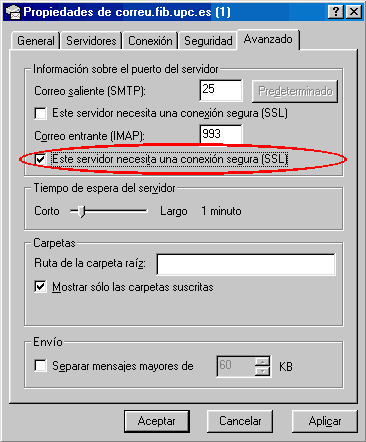
This document explains how to configure your e-mail using Netscape and Outlook Express for all students wishing to access their e-mail account from outside UPC (from home, for example). If you use UPCNET as an Internet access server, you can connect via POP3 or IMAP with or without SSL secure connection. If you are not using UPCNET, you can use POP3 or IMAP to check your e-mail, but it must be over an SSL secure connection. If you do not enable this option, you will not be able to access the account. ATTENTION: In order to send messages, when not accessing with UPCNET, you will have to use the server specified by your Internet provider as your outbox server, instead of mail.fib.upc.es (this is not the case when using WebMail). There are four ways to check your mail: 1. Using Netscape with IMAP + SSL 2. Using Outlook Express with POP3 + SSL 3. Using Outlook Express with IMAP + SSL 4. WebMail, accessing from the Student's Corner Please note Netscape does not allow you to check your e-mail via POP3 with SSL. Important Note:
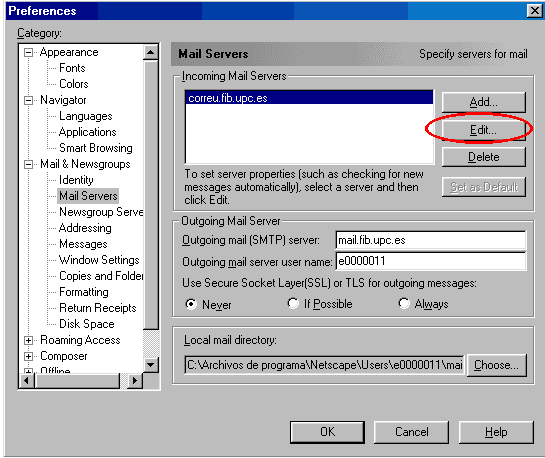
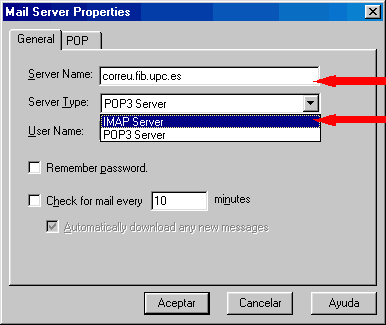
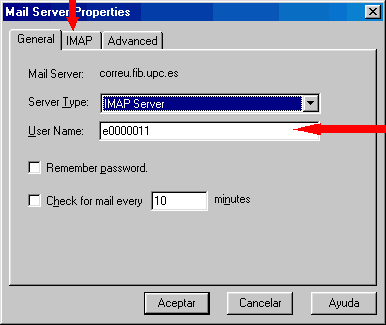
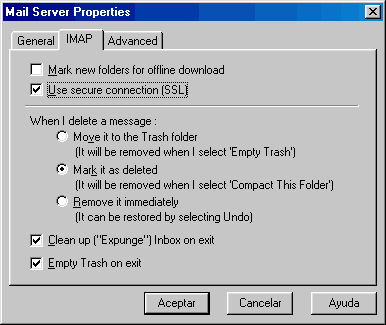
1. Using Netscape with IMAP + SSLGo to Edit>Preferences in Netscape. Then go to Mail Servers, and follow the following screenshots:
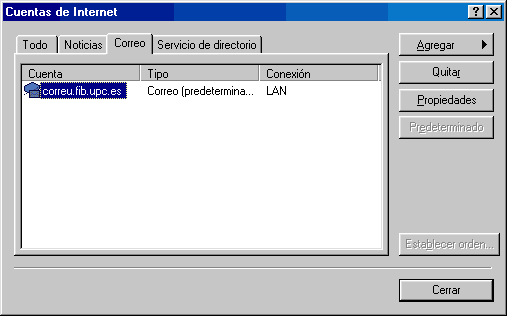
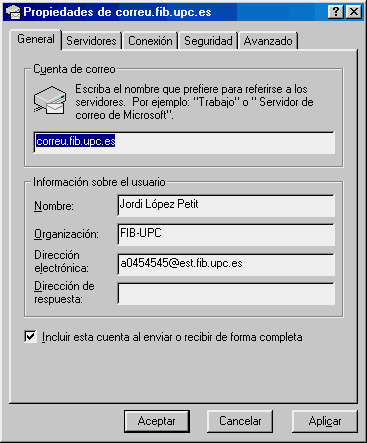
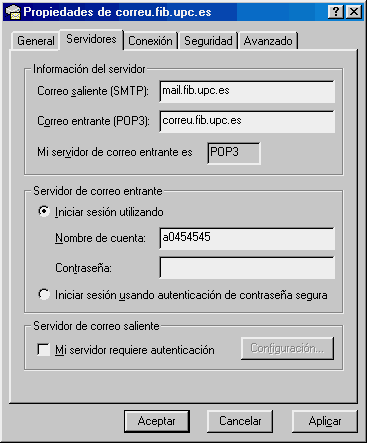
2. Using Outlook Express with POP3 + SSL Go to Tools>Accounts in Outlook, and follow the screenshots below:
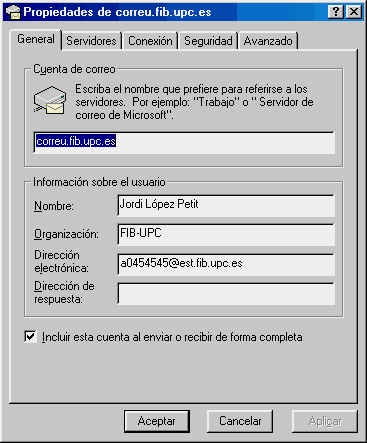
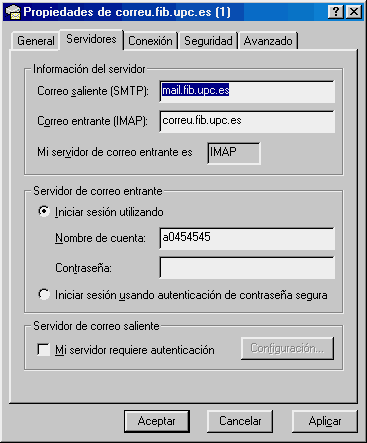
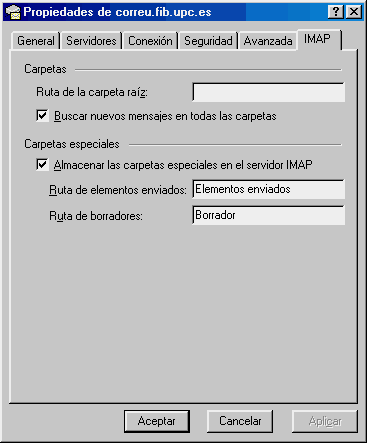
3. Using Outlook Express with IMAP + SSL Go to Tools>Accounts in Outlook, and follow the screenshots below:
4. WebMail, accessing from the Student's Corner This is the simplest way of checking your e-mail from anywhere, and requires no configuration. All you have to do is go to the FIB website and enter the Student's Corner. |  |
|
||||
 |
| |
 |
Copyright © Facultat d'Informàtica de Barcelona - webmaster fib.upc.edu fib.upc.edu |