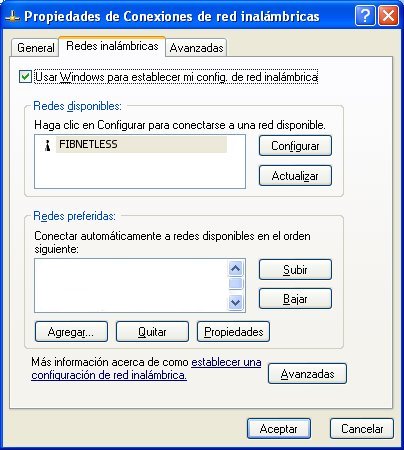
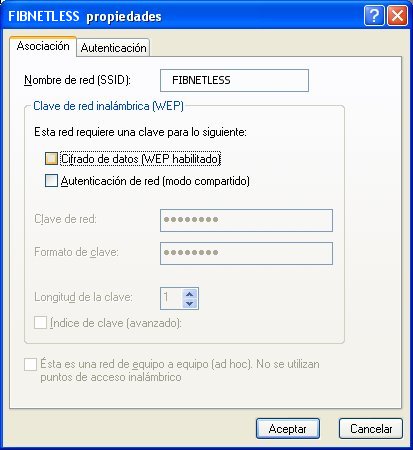
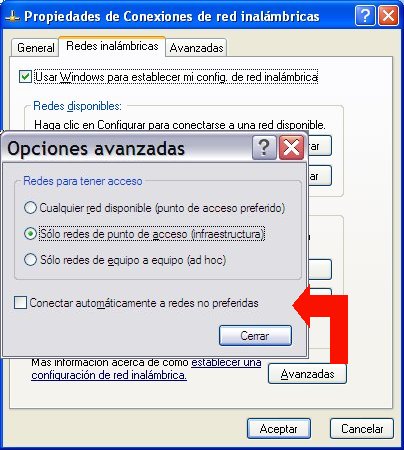
The drivers will be provided by the operators of the classroom where you are.The drivers will be provided by the operators of the classroom where you are.
On start-up, the new "RoamAbout 802 11 DS" card will be detected.
Insert the floppy disk containing the driver for the corresponding Windows version and extract the driver you require to a temporary folder.
When Windows detects the new card, it will ask for the drivers. You will need to select the directory to which you extracted them and it will detect the "RoamAbout 802 11 DS (Cabletron)" card.
An image similar to the one below will appear:
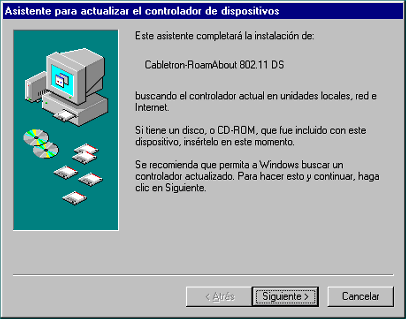 Click on "Next" and then select the directory where the drivers are located.
When installing a new card, Windows may reinstall all of its installation protocols. As it is highly likely that these protocols are already installed on your system, you can search the hard disk for the drivers directly, following the path C:\WINDOWS, C:\WINDOWS\SYSTEM
Furthermore, if you wish to connect to the Internet, a new connection between the card and TCP/IP->RoamAbout 802.11 DS (Cabletron) will appear. The DHCP is not currently configured for these cards, so you will need to configure it manually.
Once you have configured the DHCP, reboot your machine.
Installing the client programme
Turn the machine on to install the client. Insert the "Client Utility WLAN" disk and click "Setup".
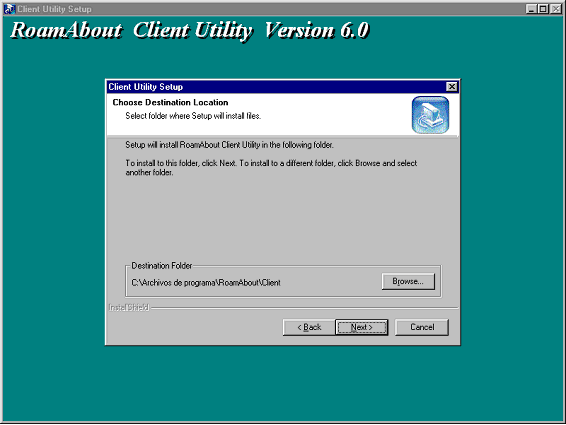
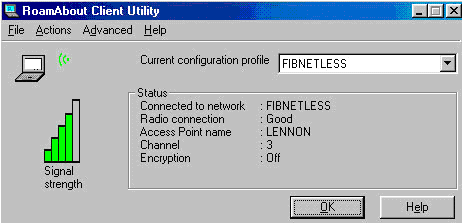
Accept the default options until the wizard finishes. Once the installation is complete, execute "Client Utility".
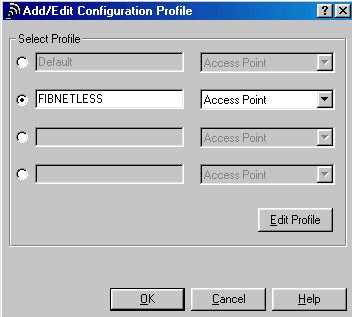
Go to "ACTIONS --> ADD/EDIT CONFIGURATION PROFILE"
Create a FIBNETLESS profile. To do so, select "Default" and click on "Edit Profile" to enter its characteristics:
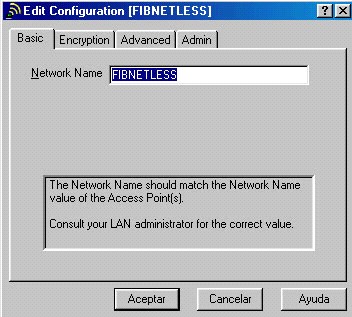
Set the name of the network as "FIBNETLESS" and leave the default options as they are:
Finally, close all the windows by clicking on "OK", then reboot the machine to ensure that everything is working correctly.
Last update: 09/03/2004
To configure your wireless card for a Linux Red Hat 9 system, follow the steps below.
You need to get the system to recognise the hardware. If the wireless card is integrated in the hardware, you will have to include it in the kernel options. If it is an external card, PCMCIA support and the module for the specific card must be activated. Many cards are already incorporated into current Linux distributions. For Red Hat 9, for example, compiling is not necessary. This documentation does not cover these tasks, which must be carried out by each individual user. The CABLETRON cards that the FIB lends out have a "Lucent Orinoco" chipset.
Once you have installed the card and the system has recognised it, you will have to configure the /dev/ehtx device.
Go to Control Panel -> System Tools -> Network Device Control -> click on "Configure..." and, in the "Network Configuration" window, select the "Hardware" option. Here, you must ensure that the hardware appears. The example below shows the configuration of the cards the FIB lends out.
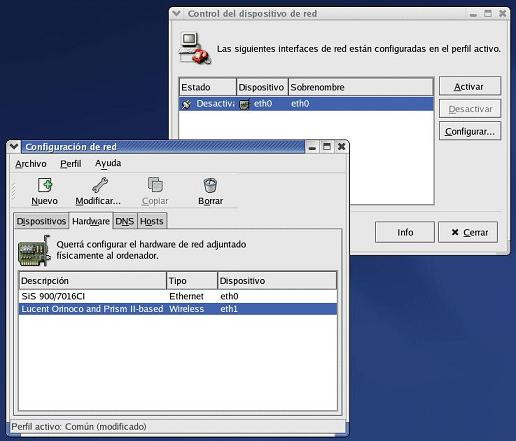
Once you have ensured that the hardware has been recognised, click on "Devices" and then "Configure". The wizard shown below will appear:
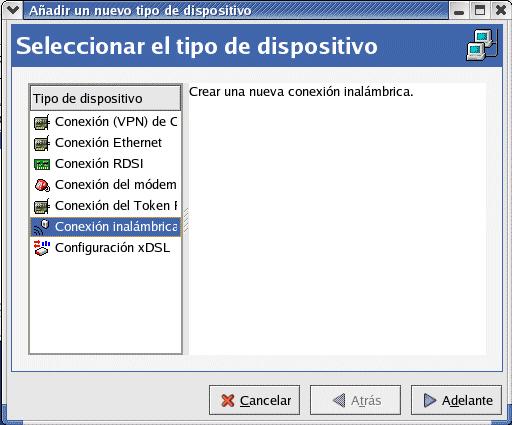
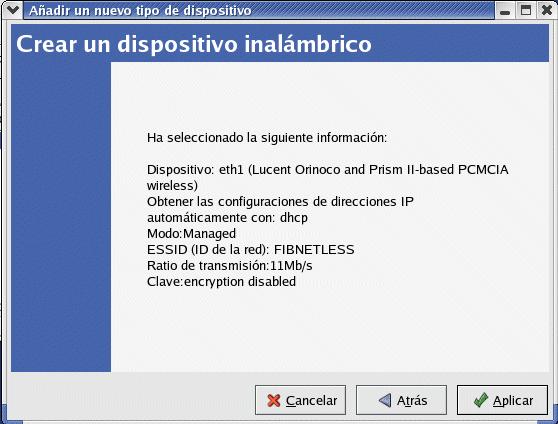
For the type of device, choose "Wireless connection" and then click "Next".
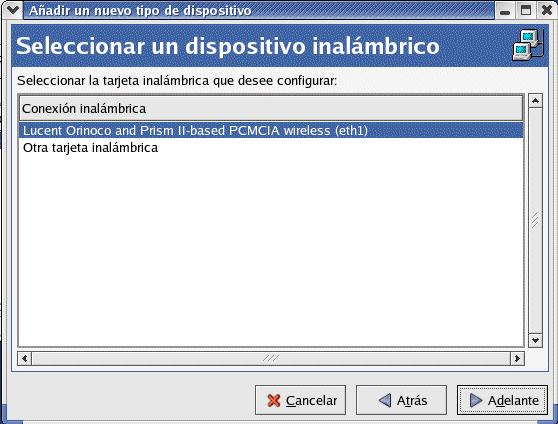
Select the recognised hardware. In this case, select "Lucent Orinocco and Prism II-based PCMCIA wireless" and then click "Next".
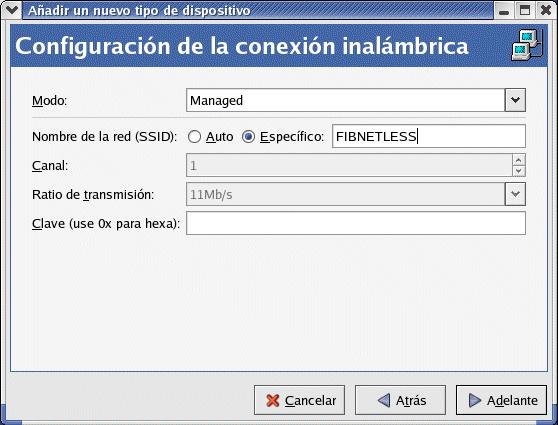
To configure the wireless network, To configure the wireless network, select the "Managed" mode and then enter FIBNETLESS as the name of the network (SSID).
Select the option to configure it automatically by "DHCP".
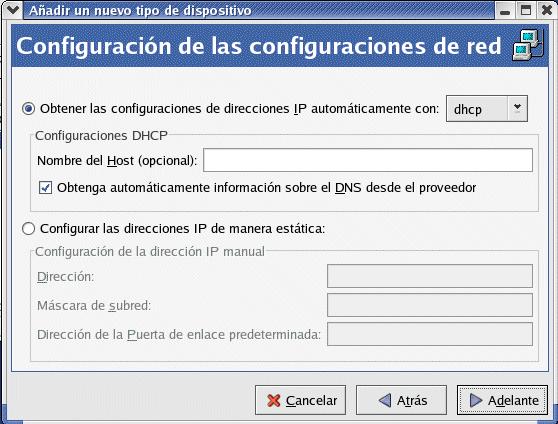
The configuration is now complete.
The device should now appear in "Network configuration".
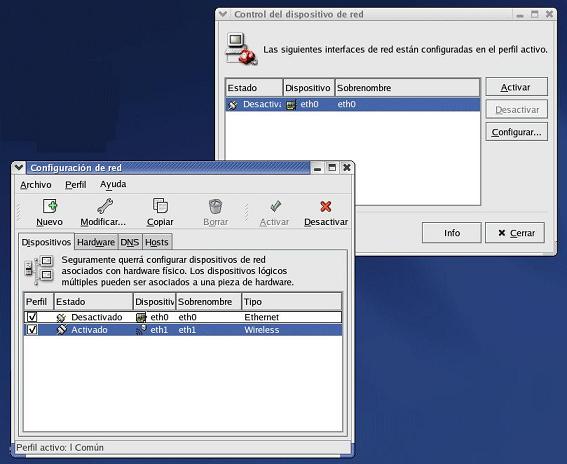
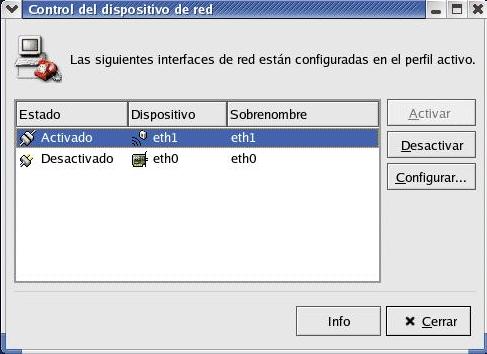
It should also appear in "Network device control".






 fib.upc.edu