

|
|
|
| |
|
|
||||
 |
| |
| FIB > Computing laboratory > FAQ > Windows and PC |
Català | Castellano | |
|
|
|
|
|
Windows and PCLast modified: 14-06-2002
A. GENERALA.1 Is there a forum on the computer rooms? Yes, there is a forum for discussing the technical aspects of how the computer rooms work, the Windows 9x work environment, etc. You can visit it from the Racó, or by following this A.2 What happened to MSDOS and Windows 3.x? The DOS/Windows 3.x image was withdrawn in July 1999. In order to run DOS programs, you can use the MSDOS window in Windows 9x by going "Start - Programs - MS-DOS". A.3 What happened to Windows 95? The Windows 95 image was withdrawn (except in room A5S112, where it is still operative) in September 2000. Currently we are using a Windows 98 image that includes all the software installed in the previous O/S. B. RULESB.1 Which computer rooms can I use? The computer rooms with PCs that FIB students can use (depending on class timetables, and whether you are a Final Thesis student or not) are as follows:
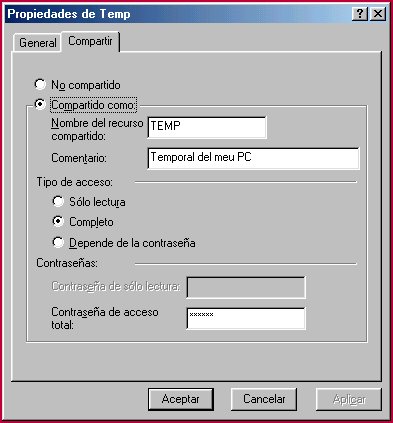
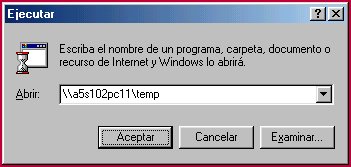
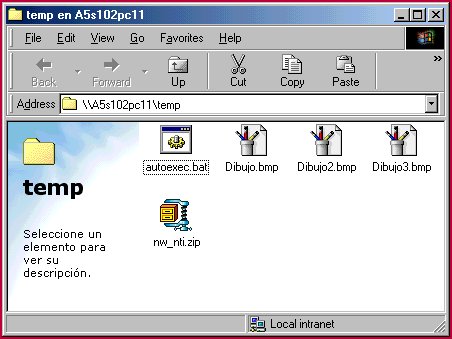
C. SYSTEMC.1 How do I log into the system? The PC rooms at the FIB employ a remote boot system in order to provide a variety of work environments. You can find out how to access each of these environments in the Work Environments section of the LCFIB website. C.2 Why does the software I install disappear? The remote boot system in place in the FIB computer rooms deletes the contents of the hard drive each time a PC is rebooted, unless the user chooses to boot up from the local disk drive. If this is the case, the system will boot up with the same contents as the last time it was loaded. If any option other than that of booting up from the local disk drive is chosen, any programs that may have been installed will be lost. C.3 How can I access FUSIO and FISSIO from outside the FIB? In order to gain access from outside the computer rooms, follow the instructions contained in this document. C.4 What does this error message mean: "Cannot display GIF ..."? ? This error can occur when an operating system image is restored in a PC during the booting-up process. Generally, it is not a serious error, and is solved by simply rebooting. If it persists, please contact the Operations Service. D. USER ACCOUNTSD.1 Can two accounts be merged? Currently, because of internal Microsoft network restrictions, this is not possible. D.2 Can files be shared amongst classmates? Client configuration in Windows 9x allows the sharing of a folder on the hard drive. This folder will be accessible to all those that know the password. The procedure for using this service is as follows.
For example, In order to share the
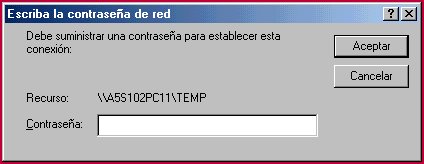
Since this folder is shared under a password, the Microsoft network gives this message before allowing access: "You must provide a password in order to establish this connection":
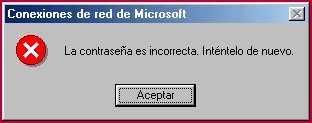
If the password is incorrect, an error message appears ("The password is invalid. Please try again.) to indicate this:
E.1 What printers are available? The printers currently available for the various environments can be checked on the Lists Service page on the LCFIB website. From an MS-DOS window, you may only print ASCII files (binary files must be printed from the program that created them), as follows:
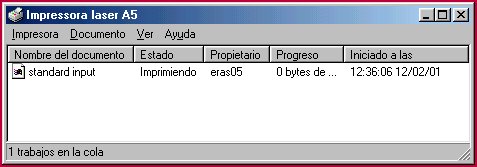
E.3 How do I view the print queue from Windows 9x? In order to view the state of the queue from Windows 9x, you must access the specific printer from the start menu: Start>Configuration>Printers For example, we can see the state of a printer called "Impressora injecció A5":
E.4 When trying to print, the system asks for a password; what should I do? If the system gives an error message when trying to print, it means there is a connection problem related to sharing the printer. This is because the user has used the disprint command, and will therefore be unable to print until he/she goes to the Operations Service in order to clarify the situation. F. SOFTWAREF.1 What software is installed? An up-to-date list of the software installed on the PC work environment is available following this link link. F.2 How do I run the Borland compilers? The Borland compilers (Turbo C++ and Turbo Pascal) are run from MSDOS once their folder is added to the PATH file in the work environment:
F.3 How do I use JDK? How do I use Java? In order to use the Sun Java Development Kit you must initialise the PATH variable in the work environment, and also tell the compiler where the available classes are (CLASSPATH). This is done by running the following initialisation command:
F.4 How do I compress and uncompress ZIP files? Isn't Winzip installed?
You can also use |  |
|
||||||||||||||||||
 |
| |
 |
Copyright © Facultat d'Informàtica de Barcelona - webmaster@fib.upc.es |
 link
link